Apple Watch App Development: Designing for the Wrist
How we design and build watchOS apps: whether you need one at all, companion versus independent apps, complications and Smart Stack widgets, and workouts with HealthKit.
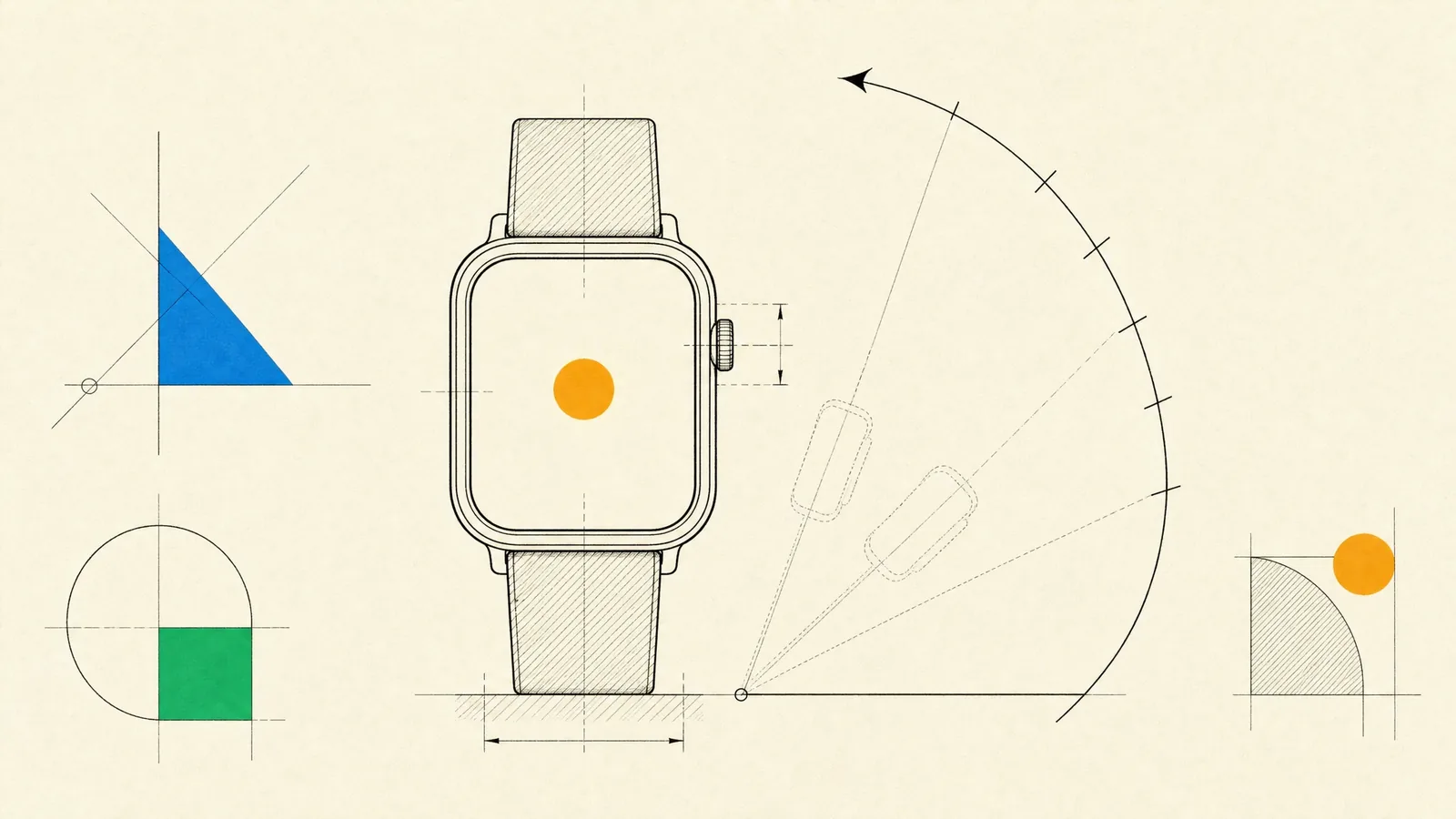
People use an Apple Watch app in seconds. They raise the wrist, glance, maybe tap once, and lower it again. Most of the craft in Apple Watch app development is fitting something useful into that window, and deciding which moments deserve the wrist in the first place.
In a good watch app, the information often shows up before anyone opens the app: on a complication, in the Smart Stack, in a notification. Interactions take a tap or two. Workout and health data can be trusted, the battery impact goes unnoticed, and the app keeps doing its job when the iPhone stays at home.
What belongs on the wrist
The watch products that work all answer a question or complete an action faster than pulling out a phone would. Typical examples:
- Workouts and training, such as running, cycling, strength and interval sessions with live metrics.
- Health and well-being: medication reminders, symptom and mood logging, breathing sessions, and companion experiences for MedTech programs.
- FinTech features like a balance at a glance, transaction alerts, or approving a payment or a sign-in with one tap.
- Checking, starting or stopping IoT and connected hardware without reaching for a phone.
- Timers, checklists and alerts for people at work whose hands are busy.
- Media playback control, plus offline audio for runs without a phone.
Some things don’t belong on the watch. Browsing a catalog, reading long text, onboarding, settings screens with many options and anything that needs real typing all stay on the iPhone.
Companion, independent, or no watch app at all
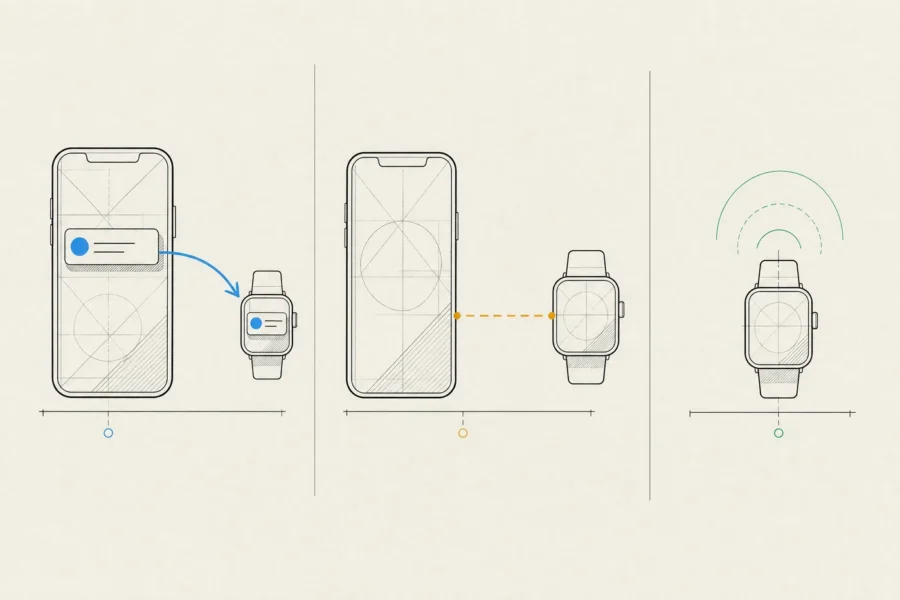
The first decision is whether the product needs a watch app. When the phone is locked and the watch is on the wrist, notifications from your iPhone app already reach the watch, actions included. Live Activities from the iPhone app show up in the watch’s Smart Stack. For order updates, delivery tracking or simple approvals, that may be enough, and our iPhone app development article covers those surfaces.
| Approach | Good for | Trade-offs |
|---|---|---|
| No watch app: notifications and Live Activities | Alerts, status tracking, one-tap approvals | No custom interface beyond what those surfaces allow |
| Companion watch app | Products whose account and data live in the iPhone app | Setup and fresh data depend on the phone; weaker when it’s out of range |
| Independent watch app | Workouts, cellular watch owners, Family Setup watches | Its own sign-in, networking and push handling, so more to build and test |
An independent app installs from the App Store on the watch itself and works without the iPhone app. That also makes it the natural fit for watches configured through Family Setup, since their wearers don’t have an iPhone of their own. It does need its own sign-in, and typing a password on a watch is miserable. We use Sign in with Apple, or hand the session over from the iPhone app if you have one.
When the two apps do talk, Watch Connectivity gives you several channels, and picking the wrong one is a common source of sync bugs. Application context carries the latest state and overwrites older values. User info transfers are queued and delivered in order. Live messages only work if the other side is reachable at that moment, and file transfers are for larger payloads. Every flow we design assumes the phone might not be reachable.
Designing glanceable interfaces
A few rules apply to every watch screen we design:
- Each screen carries one idea: a single number, status or action, in large type with strong contrast. Black backgrounds blend into the bezel and save power on the display.
- Paths stay short. We use vertical pages and lists, the Digital Crown for scrolling and precise adjustment, and taps rather than complex gestures. On watches that support it, the double-tap gesture can trigger the primary action.
- With Always On, the app can stay visible in a dimmed state after the wrist drops, updating less often. In that mode we hide sensitive data and cut detail, rather than just dimming everything.
- Notifications are part of the interface. The short look shows only the essentials, while the long look can carry custom content and actions. The best watch notifications get resolved without opening the app.
- Haptics confirm that an action worked, so people don’t have to look again.
- Input stays minimal. Suggested replies and presets come first, with dictation and Scribble as fallbacks.
Watch cases come in several sizes. Layouts adapt to all of them, and we check the smallest first. We test VoiceOver and larger text sizes on the watch itself instead of assuming the phone’s behavior carries over.
Complications and Smart Stack widgets
For many watch apps, the complication is the product. People see it every time they check the time and open the app itself far less often. Complications and Smart Stack widgets are built with WidgetKit, the same framework iPhone widgets use, so the data and timeline logic can be shared.
The design has to work within a few engineering constraints:
- The system renders from a timeline of entries you prepare in advance, and how often you can refresh that timeline is budgeted. A complication on the active watch face earns more frequent background updates, but never real-time ones.
- Stale data shouldn’t pass for fresh. Relative and timer-style text keeps counting on its own between updates, and a last-updated cue is better than a confident wrong number.
- Every complication family (circular, rectangular, inline and corner) needs its own layout. Many watch faces also tint complications, so a design has to work tinted as well as in full color.
- Relevance hints let the system know when your widget matters, for example just before a scheduled session, so the Smart Stack can surface it at the right moment.
Workouts, HealthKit and sensors
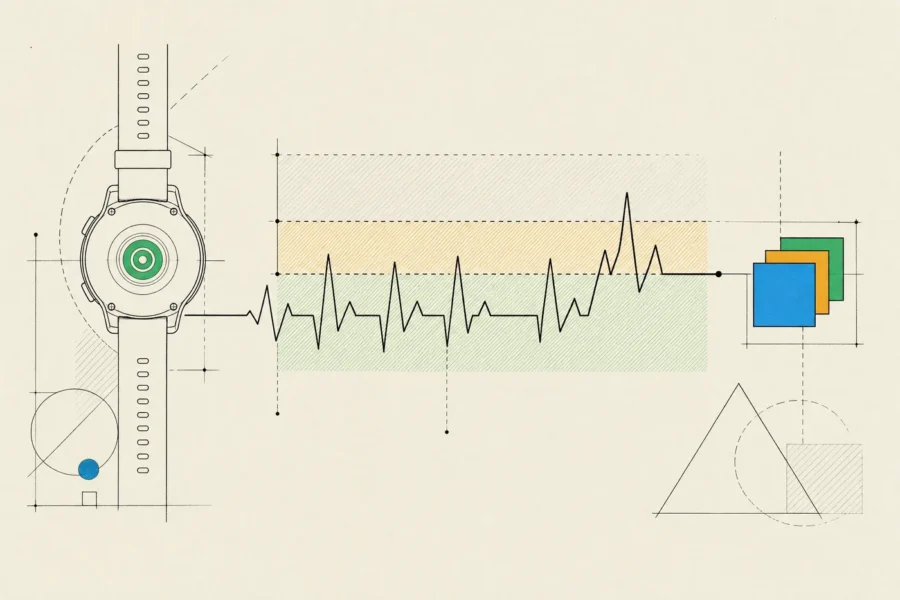
During exercise, a workout session keeps your app running with live heart rate, energy and distance. When it ends, the workout is saved to Health and joins the rest of the user’s activity history. You can start a workout from the iPhone app and mirror it back there for a larger live view. For non-workout sessions such as mindfulness or physical therapy, an extended runtime session keeps the app running for a limited time. Faking a workout to keep an app alive drains the battery and pollutes the user’s health data, and we won’t do it.
HealthKit permission is granted per data type, and only for the types you ask for. To protect privacy, HealthKit never tells an app that read access was denied. It just returns no data. So every interface needs a sensible no-data state, and we only request a type when a feature actually needs it. App Review is strict here as well: health data can’t be used for advertising or data mining, and personal health information can’t be stored in iCloud.
Heart rate from the watch works well for trends and training zones. Presenting it as a clinical measurement is another matter. If your app diagnoses, monitors a condition or guides treatment, medical-device regulation may apply in your markets. We bring this up in discovery, so you can settle the regulatory path with your advisers before the product depends on it.
Our process for Apple Watch app development
We start discovery with moments, not screens. For each moment, we look at what triggers it (a time, a place, an event, a workout) and which surface suits it: a notification, a complication, a Smart Stack widget or an app screen. Those answers settle the companion-versus-independent question and show which HealthKit data and regulatory questions are in scope. Sometimes they also show that notifications and Live Activities already cover the moment. In that case we’d rather say so than build a watch app for its own sake.
Prototypes go onto a real watch early, because a mockup on a laptop screen misleads you about legibility and tap targets. We usually build the watch app alongside the iPhone app, with shared Swift packages for the data model, networking and domain logic, and the watch interface in SwiftUI. Our Swift app development article explains how we structure those packages. If you have an older watch app built on WatchKit storyboards, rebuilding its interface in SwiftUI usually costs less than carrying it forward.
QA covers what simulators can’t: sensors and workouts on real watches, haptics, Always On behavior, Low Power Mode, and the phone dropping out of range in the middle of a sync. We handle App Store delivery too, including watch screenshots, privacy details that cover health data, and review notes explaining how to reach each watch feature. After release, complication usage, session length and crash data guide what we change next.
The watch work usually sits inside a broader iOS app development team. For the watch, that means an engineer experienced with watchOS, a product designer and a QA tester, working with the business analyst from the main product.
Frequently asked questions
Do we need an iPhone app to offer an Apple Watch app?
No. An independent watch app installs from the App Store on the watch and runs without an iPhone app. Most products still benefit from having both, with the phone handling setup and anything that needs a bigger screen.
Can a watch app keep running in the background?
Only in specific cases: a workout, an extended runtime session, audio playback or a brief scheduled refresh. Everything else has to be designed around short lifetimes and suspension.
Can our app read heart rate and other health data?
Yes, through HealthKit, as long as the user grants permission for each data type. Expect some people to grant only some types, and expect strict rules on how the data may be used and stored.
How do we get onto people’s watch faces?
Build a complication worth adding. People pick their own complications, so yours has to show something useful at a glance. Relevance hints then help the Smart Stack surface your widget when it matters.
Should we update our old watch app or rebuild it?
If it predates SwiftUI, rebuilding the interface usually costs less than maintaining it. Keep the model and networking code that still works.
If you think part of your product belongs on the wrist, or you can’t tell yet, describe the moment you have in mind and we’ll look at which surface fits it. Sometimes a better notification beats a new app.